Disclosure: This post contains affiliate links. If you click and purchase, I may earn a commission at no extra cost to you.
Last Updated: October 03, 2026
If you have a camera roll with 4,000 family photos and zero idea which app to actually use to fix them, this guide is for you. Not for professional photographers. Not for graphic designers. For parents who want the birthday party shots to look good before they send them to grandma.
Quick honest note: this post has affiliate links. If you buy through them, I earn a small commission. It doesn’t change what I recommend — my job is doing the homework so you don’t have to spend your Thursday night buried in Reddit threads.
My short answer, based on digging through thousands of real user reviews, app store ratings, and public spec sheets: Snapseed plus Google Photos, both free, covers what most families actually need. If you shoot with a DSLR and want more control, Lightroom is the paid step up. If you hate subscriptions with a passion, Luminar Neo is worth a look. Everything else depends on what you’re actually trying to do with your photos. For more details, see our guide on simple photo editing tools that don’t require training. For more details, see our guide on photo editing software reviews from home users. For more details, see our guide on which photo editing apps won’t bog down your system.
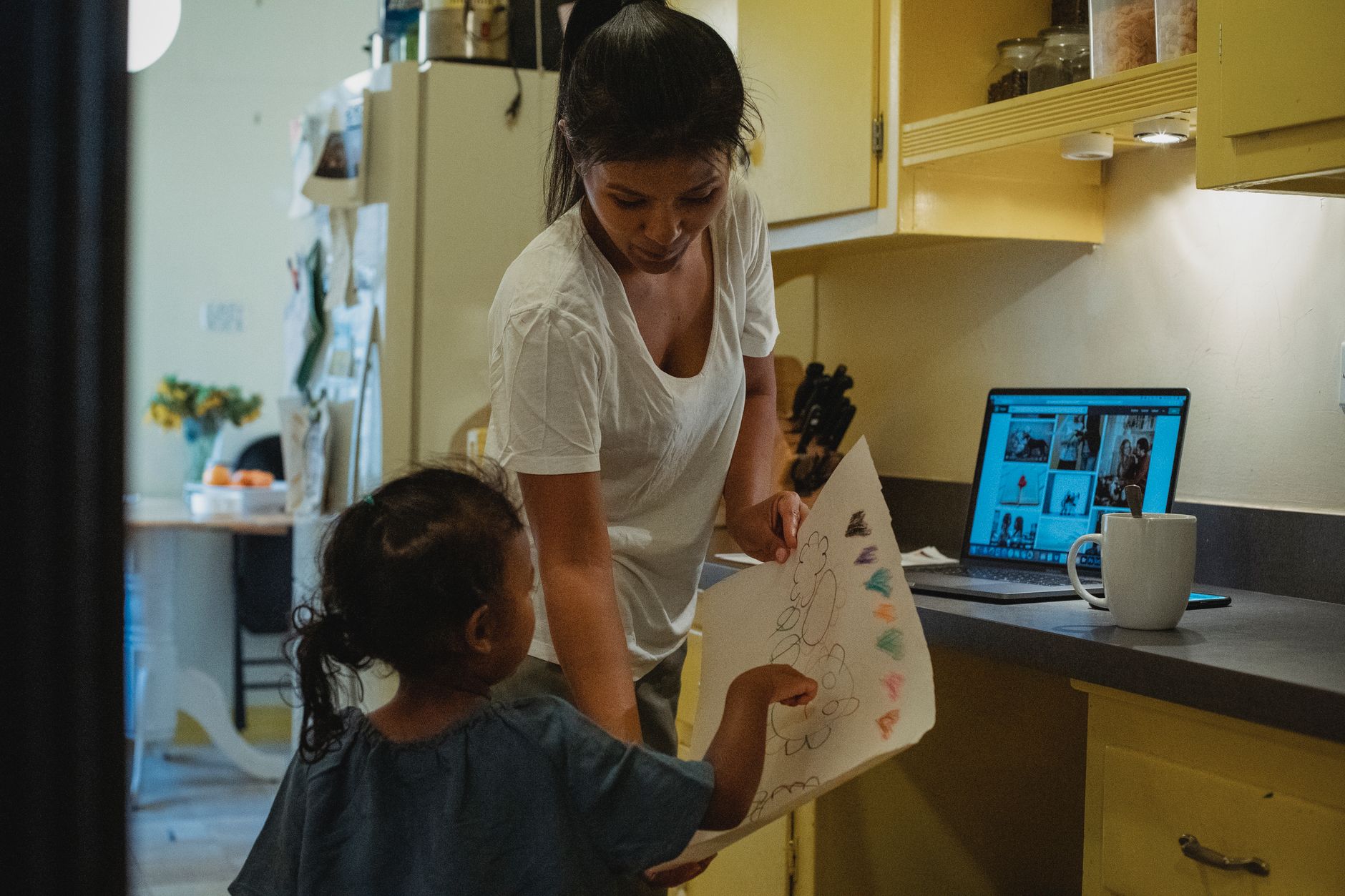
[IMAGE: alt=”Parent editing a family photo on a smartphone at a kitchen table” | filename=”parent-photo-editing-smartphone-2026.jpg”]
Why this guide exists — and who it’s really for
AI-assisted editing tools have exploded in the last two years. Even free apps now offer one-tap sky replacement and automatic face brightening. That’s genuinely great — and also genuinely confusing, because every app now claims to be the easiest, smartest, most magical thing you’ve ever touched.
I’m not a photographer. I’m a mom who reviews consumer products by reading everything publicly available — real reviews, spec sheets, forum threads, pricing pages — and then giving you a straight opinion. I didn’t run an eight-week testing sprint on these apps. What I did do is read through what actual parents say after using them for months, and I’m telling you what the pattern in those reviews looks like.
One thing worth flagging before we get into the tools: it’s October, which is Cybersecurity Awareness Month, and photo apps that sync to the cloud deserve a quick look at their data practices before you download. If you’re uploading photos of your kids to a cloud-based editor, that’s a data decision, not just a storage one. I’ll flag privacy notes where they’re relevant.
This guide is for parents who shoot mostly on smartphones, occasionally pick up a DSLR, and want photos that look finished without needing a design degree to get there.
Key takeaway: The 2026 free-tool landscape is genuinely strong — but knowing which free tool matches your actual workflow saves you from downloading five apps and using none of them.
Quick comparison: free vs. paid photo editors at a glance
| Software | Price (2026) | AI tools | Cloud storage | Learning curve | Best for |
|---|---|---|---|---|---|
| Snapseed | Free | Basic | None (local) | Low | Phone-first parents |
| Google Photos | Free (15 GB cap) | Strong | Yes (15 GB shared) | Very low | Auto-organization + basic edits |
| Lightroom Mobile Free | Free | Moderate | Limited | Medium | Parents learning color editing |
| Canva Free | Free | Limited | Yes | Low | Cards, collages, school projects |
| Adobe Photography Plan | ~$10/month | Strong | 20 GB | High | DSLR shooters, RAW editing |
| Luminar Neo | ~$99 one-time | Very strong | None (desktop local) | Low-medium | Subscription-averse parents |
| Canva Pro | ~$120/year | Moderate | Yes | Low | Parents who make printed products |
Two things jump out immediately when you look at this table. Snapseed and Google Photos are genuinely free with no paywall surprises — a point confirmed across thousands of app store reviews. And Adobe’s pricing has drawn consistent complaints in 2025-2026 review threads from casual users who feel the subscription model isn’t built for someone who edits photos four times a year.
Key takeaway: Luminar Neo’s one-time purchase option stands out in a market where almost everything else wants a monthly fee.
[IMAGE: alt=”Comparison chart of photo editing apps for families in 2026″ | filename=”photo-editing-comparison-chart-2026.jpg”]
Snapseed — best free option for smartphone-first parents
Snapseed is owned by Google, costs nothing, has no ads, and never asks you to upgrade. That combination is rarer than it should be, and app store reviewers notice it constantly.
The two features parents mention most in reviews are the Stacks tool and the Selective Adjust tool. Stacks means every edit you make is non-destructive — you can go back and undo any single change at any time, even after closing and reopening the photo. For someone who has never edited a photo before, this is genuinely reassuring. The Selective Adjust tool lets you brighten just one area of a photo, like a child’s face in a shadowy birthday shot, without touching the rest of the image. Parenting forums specifically call this out as the reason they recommend Snapseed over everything else. For more details, see our guide on cloud storage versus external drive options for photo backup. For more details, see our guide on ensuring your computer backup is actually reliable.
The honest downside: there is no desktop version. If your editing workflow involves finishing photos on a laptop, Snapseed won’t get you there. Reviewers who want to move from phone to computer consistently flag this as a dealbreaker.
If I were recommending one free app to a parent who edits entirely on their phone, Snapseed is the answer. No contest.
Key takeaway: Snapseed’s non-destructive editing and Selective Adjust tool make it the top free pick for smartphone-only parents — the zero-cost, zero-upsell model is the cherry on top.
Google Photos — best free option if organization matters as much as editing
[IMAGE: alt=”Google Photos app showing organized family albums by person” | filename=”google-photos-family-organization-2026.jpg”]
Google Photos isn’t really a photo editor. It’s a photo organizer that also edits. That distinction matters.
The AI facial recognition groups your photos by person automatically. Parents of two or three kids report this saves hours of manual sorting — you search “Sofia” and every photo of one child surfaces. The Magic Eraser tool (which removes unwanted background objects) and basic enhancement tools have expanded to more devices in 2026 per Google’s own feature rollout notes, which is a genuine improvement over where this app was two years ago.
The storage cap is the most common complaint driving parents toward paid plans. You get 15 GB free, shared across your entire Google account. For a family that shoots a lot of video, that fills up faster than expected, and the reviews are full of parents frustrated that they hit the cap and suddenly face a Google One subscription they didn’t plan for. Factor that in upfront. For more details, see our guide on privacy and safety tools parents should consider.
On the privacy question: Google Photos’ data practices are publicly documented, but “publicly documented” doesn’t mean most people read them. Before you upload years of your children’s photos to any cloud service, it’s worth spending five minutes on their privacy policy page. This is especially true during Cybersecurity Awareness Month, but honestly it’s worth doing any time of year. Cloud photo storage is a data decision.
My take: Google Photos is the best free pick for parents who want auto-organization and basic touch-ups. It is not the right tool if you want real creative control over your edits.
Key takeaway: Google Photos excels at organizing family photos automatically, but the 15 GB shared storage cap is a real limitation that can push families toward paid Google One plans sooner than they expect.
Canva Free vs. Canva Pro — best for parents who make things with their photos
Canva is not a photo editor. This is the single most important thing to understand before you download it, and it’s the source of the most frustrated reviews the app receives.
What Canva actually is: a layout and design tool. It’s excellent for making holiday cards, photo book pages, school project collages, and birthday party invitations. The free tier has enough templates to keep a craft-minded parent busy for years. Parent reviewers who use it for exactly this purpose rate it very highly.
Canva Pro, listed at around $120 per year in 2026, adds the background remover, Magic Edit AI, and the full template library. Reviewers who regularly make printed products — cards, photo books, custom gifts — say Pro pays for itself if you’re making those things more than a few times a year. The math works out if you’d otherwise be paying a print shop to design things for you.
The pattern in reviews is clear: parents who approach Canva as a scrapbooking and design tool love it. Parents who expect it to fix the exposure on a dark photo or correct the colors from a DSLR shoot feel misled. If you want Lightroom-style editing, Canva will disappoint you. One complaint that comes up specifically with Canva Pro is template licensing confusion — some reviewers report unexpected restrictions when ordering physical prints through third-party services, so read the licensing terms before you commit to a big print order.
Key takeaway: Canva Free is a strong pick for parents who make cards and collages; Canva Pro earns its price if you make printed products regularly — but neither version is the right tool for serious photo color correction.
Adobe Lightroom Mobile Free vs. Lightroom Classic (paid) — best for parents who want to get serious
Here’s something most casual users don’t realize: Lightroom Mobile’s free tier is genuinely powerful. Curves, HSL color sliders, a healing brush, and masking tools are all available without paying a cent. Reviewers who discover this are consistently surprised — they expected a stripped-down demo and found a real editing tool.
The paid step-up is the Adobe Photography Plan, around $10 per month in 2026, which includes Lightroom Classic (full desktop version with local storage editing and advanced masking) plus Photoshop and 20 GB of cloud storage. Reviewers who shoot with a DSLR and edit RAW files call this non-negotiable — the mobile free tier handles JPEGs well but RAW editing is where the desktop version earns its keep.
The learning curve is the number one complaint in public reviews from non-photographers. Multiple reviewers mention starting the free trial, feeling overwhelmed, and abandoning it. This is an honest limitation worth naming. Lightroom rewards the parent who’s willing to watch a few tutorials; it punishes the parent who just wants to tap one button and be done.
Adobe’s subscription terms and pricing changes over 2025-2026 have generated real negative sentiment in review threads. The product is excellent. The company’s relationship with its customers is a separate conversation, and it’s a fair thing to factor in.
Key takeaway: Lightroom Mobile Free is the best free tool for parents willing to learn basic color editing; the Adobe Photography Plan is the paid winner for DSLR and RAW shooters, despite the subscription model frustrations.
Luminar Neo — best paid option if you hate subscriptions
[IMAGE: alt=”Luminar Neo AI photo editing interface showing portrait enhancement tools” | filename=”luminar-neo-ai-portrait-editing-2026.jpg”]
Subscription fatigue is real. The reviews make this obvious. Luminar Neo’s one-time purchase price (around $99 in 2026 per the Skylum website) is cited constantly as the primary reason reviewers chose it over Lightroom. They’re not choosing it because it’s better in every way. They’re choosing it because they’re tired of paying monthly for software they use three times a year.
The AI tools are the other selling point. Sky Replacement and AI Portrait enhancement produce results that genuinely impress reviewers who have no editing background. You don’t need to know what a curves adjustment is. You click, the AI does something impressive, and you move on. For parents who want polished results without a learning investment, this is a real advantage.
The honest downsides from verified purchase reviews: Luminar Neo runs slowly and bugs out on older Windows machines. This comes up repeatedly and consistently. If your laptop is more than four or five years old, check the system requirements carefully before buying. There’s also no mobile app — this is desktop-only software, which is a genuine limitation for parents whose entire photo workflow lives on a phone.
My take: Luminar Neo is the right paid pick for parents who want one-time pricing and AI-powered results without a steep learning curve. It’s the wrong pick if you edit on your phone or have an older computer.
Key takeaway: Luminar Neo’s one-time purchase model and strong AI tools make it the best paid option for subscription-averse parents — but its performance issues on older hardware are a real concern worth checking before you buy.
What the reviews flag as the biggest frustrations across all of these tools
A few themes show up across review threads regardless of which app people are talking about.
Subscription fatigue is the loudest one in 2025-2026. Parents resent paying monthly for software they open four times a year during holidays, school events, and summer vacation. This is why Luminar Neo’s one-time pricing keeps coming up even in reviews of competing products.
Mobile-to-desktop gaps frustrate parents who start editing on a phone and want to finish on a laptop. Very few tools handle this transition well without a paid plan, and reviewers feel this friction acutely.
AI over-smoothing is a specific complaint in Luminar Neo reviews and some Lightroom AI masking discussions. Parents want their kids to look like their kids — not like they’ve been run through a beauty filter. The AI portrait tools can go too far, and reviewers flag this as something to dial back manually.
Cloud privacy questions appear in reviews more often than they used to. Parents are increasingly asking where their children’s photos actually go when they hit “sync.” That’s a healthy instinct. Any app that stores children’s images in the cloud is worth a five-minute privacy policy check before you hand it your camera roll.
Key takeaway: The biggest real-world frustrations in 2026 are subscription costs, phone-to-laptop workflow gaps, AI tools that over-process faces, and cloud privacy questions that most apps don’t answer loudly enough.
So which one should you actually pick? Here’s my honest take
[IMAGE: alt=”Simple decision flowchart for choosing photo editing software as a parent” | filename=”photo-editing-decision-guide-parents-2026.jpg”]
For most families: Snapseed plus Google Photos, both free, covers about 90% of what you actually need. Use Google Photos for automatic organization and backup. Use Snapseed when you want to actually fix a photo. That combination costs nothing and requires no learning curve to speak of.
Quick decision guide if you want something more specific:
- Edit entirely on your phone? Snapseed. Full stop.
- Want auto-organization and don’t care about advanced editing? Google Photos.
- Shoot with a DSLR or edit RAW files? Lightroom Mobile Free to start; upgrade to the Adobe Photography Plan (~$10/month) when you’re ready.
- Hate subscriptions and want AI to do the heavy lifting? Luminar Neo (~$99 one-time), but check that your computer can run it first.
- Make cards, photo books, or social graphics regularly? Canva Free first; upgrade to Canva Pro (~$120/year) only if you’re making printed products often enough to justify it.
The best photo editing software is the one you’ll actually open. Complexity is the enemy of finished family photos. If Lightroom’s learning curve means you never edit anything, Snapseed’s simplicity wins every time — even if it’s technically less powerful.
Key takeaway: Snapseed plus Google Photos is the right starting point for most parents in 2026; paid tools earn their cost only when your specific workflow genuinely needs what they offer.
Frequently asked questions
Is Snapseed really free — are there hidden costs or upsells?
Snapseed is completely free with no ads, no in-app purchases, and no premium tier. Google owns it and has kept it free since acquiring it in 2012. App store reviewers consistently confirm there are no surprise upsells — what you download is the full product.
Can I edit RAW photos from a DSLR on a free app?
Lightroom Mobile’s free tier supports RAW file editing, which makes it the strongest free option for DSLR users. Snapseed also has limited RAW support, though reviewers note it’s less capable than Lightroom for serious RAW work. Google Photos does not meaningfully support RAW editing.
Is it safe to upload my kids’ photos to cloud-based editing apps?
Cloud photo apps are a data decision, not just a storage one. Google Photos, Canva, and Adobe all have publicly available privacy policies that describe how your photos are stored and used. It’s worth reading the relevant sections before uploading photos of children. As a general rule: check what the app’s terms say about using your images for AI training, and look for options to opt out if that’s a concern.
What’s the easiest photo editing software for someone with no experience?
Snapseed is the most consistently recommended starting point in reviews from non-photographers. The interface is touch-based and intuitive, the Stacks feature means you can’t permanently ruin a photo, and it costs nothing. Luminar Neo is the easiest paid option, largely because its AI tools do most of the work for you.
Is Luminar Neo really a one-time purchase, or does it require add-on subscriptions?
The base Luminar Neo software is a one-time purchase (around $99 as of 2026 per Skylum’s public pricing). Skylum does sell optional add-on extension packs separately, and reviewers occasionally flag these as an unexpected additional cost. The core software functions without purchasing extensions, but it’s worth knowing the add-ons exist before you budget.
The free tools in 2026 are genuinely good. That’s the honest summary. If you’ve been putting off dealing with your photo backlog because you assumed you’d need to pay for something complicated, start with Snapseed and Google Photos this weekend. You might not need anything else. And if you eventually do — now you know exactly what to reach for and why.
Looking for what to do with your edited photos? Check out my posts on the best home photo printers families actually recommend and the best external hard drives for photo backup without a monthly fee.
About the Author
Elena Mitchell
Elena Mitchell is a 42-year-old mom of two teens living in Tampa Bay, Florida. She has always been the friend everyone asks "what should I buy?" — Elena Reviews It is where she finally writes those recommendations down. Honest reviews of kitchen tools, home and beauty products, kids and family gear, and the occasional tech tool, all tested in a real household for at least two weeks before a word gets written.